How to Activate Your Recurring Gift
Last updated: May 16, 2026
Your organization recently moved its online giving to WeGive. Your recurring gift was brought over for you, and it is ready to continue on its normal schedule. The only thing left to do is log in to your WeGive Donor Portal, confirm your gift details, and add your payment method. This guide walks you through it step by step.
It takes about two minutes.
Your payment information is handled securely. WeGive uses industry-standard encryption and tokenization, which means your card number is never stored directly in our systems. We work with trusted payment processors and maintain SOC 2 Type 2 compliance, the same security standard used by major financial services companies.
Important: you will not be charged today
When you add your payment method, the portal will show a button that says Confirm $XX.XX Charge & Edits. This wording can be confusing. Even though it mentions a charge, you will not be billed today. Your next gift will process on the Next charge on date shown directly above the button, exactly as it would have on your old recurring schedule.
Please do not change the Next charge on date during this process. It is already set to keep your gift on its normal schedule. Changing it can result in being charged sooner than expected.
Step by step
Step 1: Open the recurring plans page
Click the link in the email your organization sent you. You will be asked to log in. Once you are signed in, you will see your Recurring Plans page, which shows all of the recurring gifts you have set up.
The plan you need to activate will have a Missing badge in the Status area.
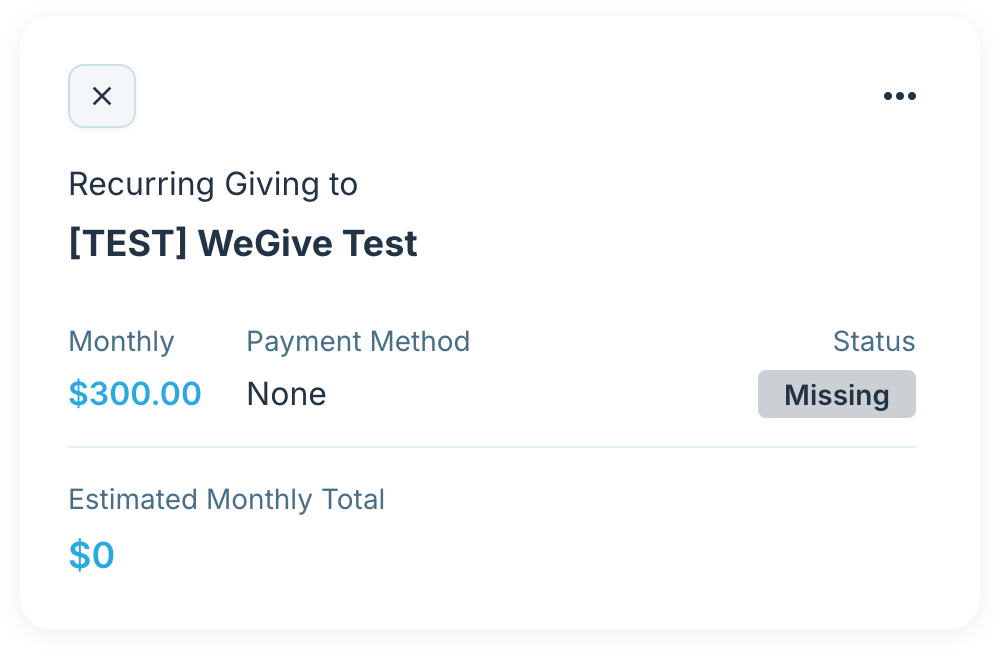
Click the dollar amount on that card to open the plan.
Step 2: Choose Edit
You will see a plan detail screen with two buttons at the top: Confirm Payment Method and Edit.
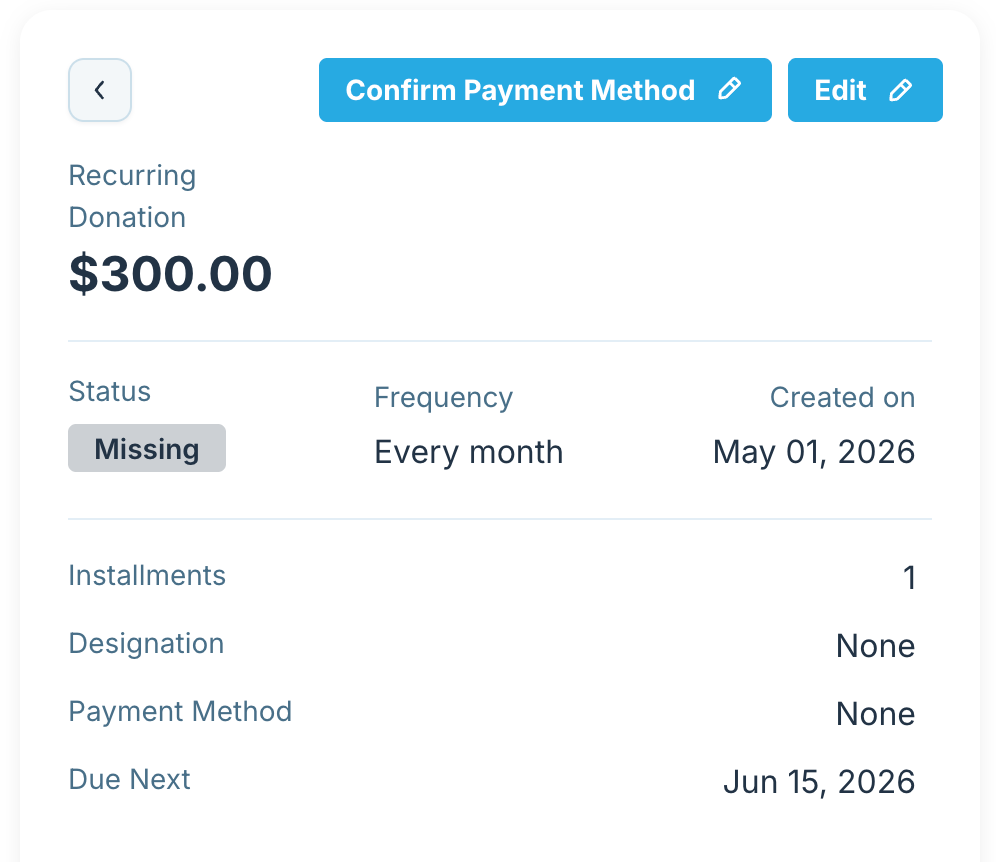
Click Edit. This gives you a chance to review the full details of your gift before you add a payment method.
Step 3: Review your gift details
On the Edit Plan screen you will see:
The recipient (your organization)
The amount of your recurring gift
The frequency (Monthly, Weekly, etc.)
The Next charge on date
The end date, if any
The honoree, if any
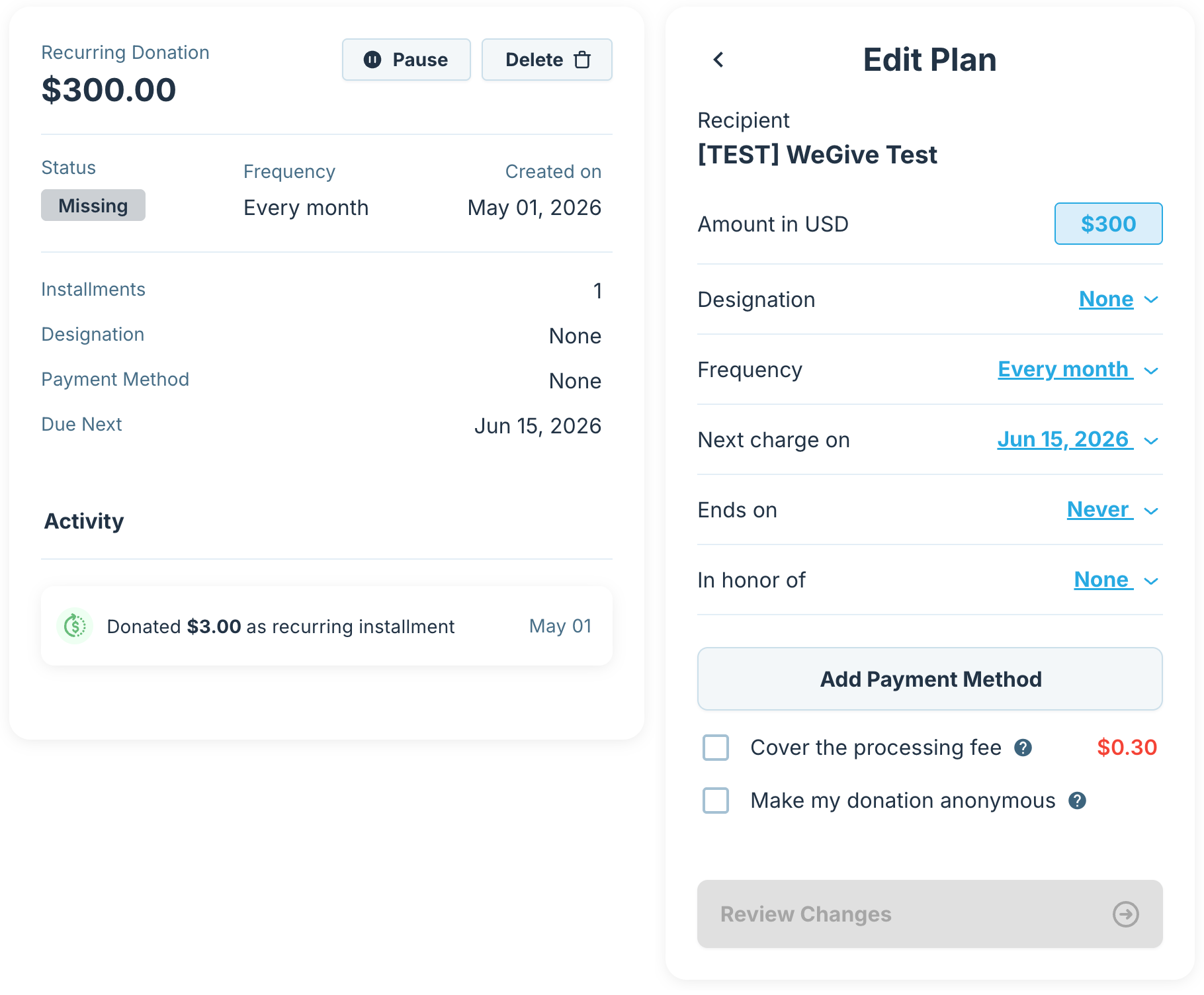
Confirm everything looks correct. Do not change the Next charge on date. If anything else needs to change (like the amount or designation), feel free to update it. If you would like to cover the processing fee so the full amount goes to your organization, check the Cover the processing fee box.
When you are done reviewing, click Add Payment Method.
Before you enter your payment information
WeGive partners with industry-leading payment processors (the same ones used by major retailers, banks, and nonprofits) to handle every transaction. Here is what that means for you:
Your full card number is never stored in WeGive's systems. We use tokenization, which means a unique encrypted reference is stored instead of your card data.
All information you enter is encrypted in transit and at rest using industry-standard protocols.
WeGive is SOC 2 Type 2 compliant, which means our security practices are independently audited and continuously monitored.
You can update or remove your payment method at any time from your Recurring Plans page.
If your organization accepts PayPal, you can also choose PayPal at the payment step, which means you never share your card details with anyone other than PayPal directly.
Step 4: Add your payment method
A payment screen will open. Choose how you would like to pay:
Credit or debit card
ACH (bank account)
PayPal (if available)
Enter your details and confirm. You will be brought back to the Edit Plan screen with your new payment method now showing.
Click Review Changes.
Step 5: Confirm changes
The Confirm Changes screen shows the full gift as it will be saved, including the payment method you just added.
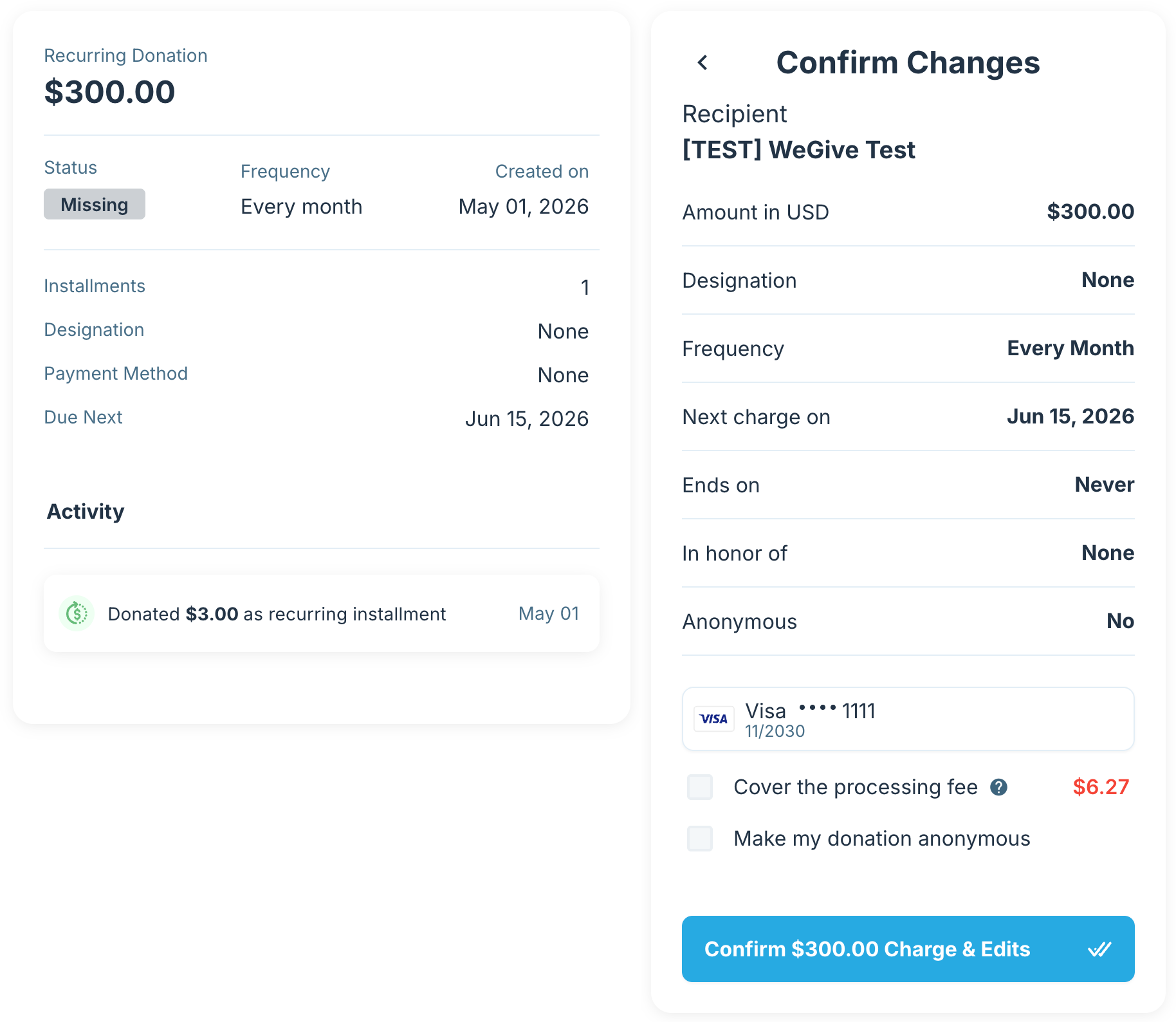
Confirm the Next charge on date is still the same date you saw earlier. As long as that date is in the future, you will not be charged today.
Click Confirm Charge & Edits to finish.
What happens next
Your recurring gift is now active. The plan's status will change from Missing to active on your Recurring Plans page. You will receive an email receipt every time your gift processes, starting on your next scheduled date.
If your organization asked you to do anything else (like cancelling an old recurring gift on a previous platform), follow the instructions in their email. Each organization handles this differently.